Save files and rollback guide
Paralives Save Files: Location, Backup, Transfer and Recovery
Find the right Paralives folder, make a clean copy before an update, move a save between computers, and investigate a file that will not load without overwriting the original.
Quick answer
Where are Paralives save files, and what should you do first?
Paralives save files are stored in the game data folder on your computer, not in the public game installation folder. The safest first move is to close Paralives and Steam, locate the folder for your operating system, and copy the entire Paralives data folder to a dated backup location. Do not edit a file while the game is open. A clean copy gives you a way back if an update, mod, crash, or manual repair makes the original save harder to load.
On Windows, current community instructions place the save data under the hidden AppData\LocalLow area, usually inside a Paralives folder. Steam Deck and Linux installations use a Proton compatibility path, while macOS uses the user's Library application-data folder. These paths are useful starting points rather than an excuse to paste a path blindly: the account name, Steam installation, Proton setup, and game build can change the final location.
A backup is more than one copied save name. Keep the whole folder, add the date and game version to the backup name, and write down whether mods or Workshop items were enabled. When you restore, close the game first, keep the broken folder untouched, and copy the backup into a separate test location or restore one controlled copy at a time. Never delete the only original while troubleshooting.
If a save refuses to load, use the official Paralives repair guidance as a diagnostic boundary. The team describes checking Player.log after reproducing the loading problem and looking for specific JSON parse or meta-file errors. Some issues have a manual fix, but the official page also says that other problems may not have a known repair. The goal of this guide is a reversible workflow, not a promise that every corrupted save can be recovered.
Short version: close the game, copy the whole data folder, label the backup, then test any transfer or repair on a duplicate before touching the save you care about.
Which files belong in a Paralives backup?
Players often search for one save file, but a safe backup should preserve the surrounding data that makes a save readable. Use the visible folder contents as your source of truth and keep the original structure intact. The names below describe what to check, not a guarantee that every build exposes identical files.
Saved-game files
Primary data
Copy the files or folders that represent your households and worlds. Do not rename internal files just to make them look familiar; preserve their extensions and folder hierarchy.
Metadata files
Load support
A save may rely on a metadata file beside its main data. If the official log points to a meta-file error, keep that file in the backup and do not replace it with a random download.
Player.log
Diagnostic record
Player.log is useful after a reproducible loading failure. Save a copy of the log beside your notes, but treat it as evidence for diagnosis rather than as a save replacement.
Character or Para data
Related content
Tools and community guides may mention separate character files. Back up the complete folder so a household does not lose related data when you move only one visible item.
Mod and Workshop context
Compatibility note
Write down recently added mods, subscriptions, and the patch date. A backup without its compatibility context can be difficult to reproduce after an update.
Version notes
Rollback map
Use a plain text note with the date, build, platform, household name, and reason for the backup. This turns a pile of archives into a usable rollback history.
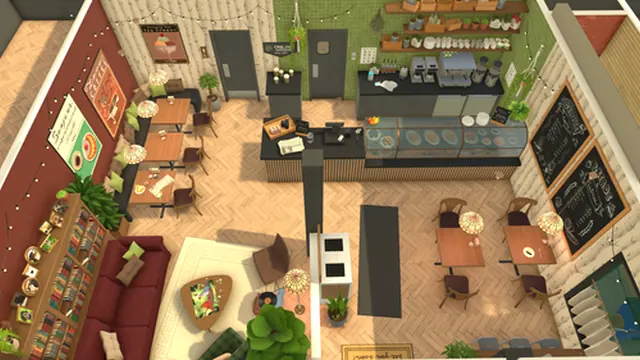
A safe Paralives save-file workflow
- 1. Finish the current action. Let the game finish saving, then leave the household or menu in a stable state. If the game is frozen, note the time and avoid repeatedly forcing a save.
- 2. Close the game completely. Exit Paralives and Steam before opening the data folder. The official repair guidance specifically starts from a reproducible load attempt followed by closing the game.
- 3. Locate the platform folder. Start with the Windows LocalLow, macOS Library, or Linux/Steam Deck Proton examples below. Search for a folder named Paralives and confirm that its timestamps match your recent play.
- 4. Copy the whole folder. Duplicate the complete Paralives data folder to a separate drive or a clearly named backup directory. Keep the original in place and do not work directly inside the only copy.
- 5. Label the backup. Use a name such as paralives-save-2026-11-16-before-update and add the platform, build, household, and mod status in a short note. A label prevents the wrong archive from being restored later.
- 6. Test in a disposable copy. For a transfer, mod change, or repair, work with a duplicated folder first. Load the target household, check relationships and lots, then close and reload once more before trusting the result.
- 7. Keep the rollback until stable. Do not delete the pre-update archive as soon as the first load succeeds. Keep at least one known-good copy until you have played, saved, and reopened the household after the change.
Paralives save locations by platform
The table gives the paths reported by the sources reviewed for this guide. Replace the username with your account and remember that hidden folders may not appear until you enable them. If a path is missing, search for the final Paralives folder and compare its modified time with a fresh save instead of creating a new folder with the same name.
| Platform | What to verify | Safe action |
|---|---|---|
| Windows | A LocalLow\Paralives folder under the user AppData area; AppData is hidden by default. | Enable Hidden items, open the folder only after closing the game, and copy the entire Paralives directory. |
| macOS | A Paralives data folder under the user's Library/Application Support path; the Library folder may be hidden. | Use Finder's Go to Folder carefully, confirm recent timestamps, and keep the original folder untouched during the copy. |
| Linux | A Proton or Steam compatibility path containing the Windows-style LocalLow data folder. | Follow the active Steam library and compatdata path for your installation, then validate a newly created save before transferring an older one. |
| Steam Deck | The Linux/Proton path can differ with Steam installation method, including Snap or other layouts. | Use Desktop Mode, search the active compatdata folder, and keep a local backup before testing sync or a new Proton version. |
| Unknown path | The folder name, timestamps, and recent save content should agree; a random folder with a familiar name is not enough. | Make a small test save, close the game, locate the folder that changed, and record that path for future backups. |
| After a patch | The location may stay stable while file structure, metadata, or mod compatibility changes. | Create a new dated backup, read the official patch notes, and keep the previous archive until the new build is stable. |
Backup checklist before an update, mod, or repair
Close first
Exit Paralives and Steam before copying. A live process can still write a file while you are archiving it, leaving a backup that looks complete but cannot load.
Copy the complete folder
Preserve folder names, file extensions, metadata, and related character data. A single visible save is not always the entire state needed by a household.
Record the build
Write the date, build number if visible, operating system, and whether Workshop or mods were enabled. Version context makes later comparisons meaningful.
Keep one clean control
Maintain a backup without experimental commands or recently added mods. It is your comparison point when a test copy behaves differently.
Test one change
Do not update, add several mods, move a household, and repair a file in the same attempt. One change at a time makes a failure easier to explain.
Verify after reload
Check the household, lots, relationships, inventory, and save list, then close and reopen once. A successful first load is not the same as a stable rollback.
Common Paralives save-file mistakes
Editing while the game is open
The folder can change underneath a copy operation. Close the game first, then work from a duplicate so the original remains a reliable reference.
Assuming Steam Cloud solved every transfer
Cloud availability and behavior can change by build and account. Keep a local archive even when a sync option appears, and verify the target computer with a disposable copy.
Restoring over the only copy
If the backup is incomplete or from the wrong build, overwriting removes your best evidence. Rename the current folder and restore into a controlled test state instead.
Following an old path literally
Windows, macOS, Proton, and Steam installation methods use different roots. Confirm the folder by matching recent timestamps and a test save, not by path text alone.
Treating a log edit as a guaranteed fix
The official repair article lists specific JSON and meta-file cases but also says other corruption may have no manual fix. Back up before any edit and stop when the error does not match.
Blaming the save before checking mods
A patch or Workshop item can change load behavior. Reproduce the issue with a clean test copy, note the result, and only then decide whether the save itself is damaged.
Why save-file advice can change during Early Access
Paralives is an Early Access game, so the folder layout, Steam Cloud behavior, save metadata, error messages, and recovery steps can change. The official team has already published a manual corruption guide and says it is working on improvements to prevent corrupted saves. That makes a dated source and a local backup more valuable than a permanent copied command or path.
Use official Paralives news and Steam patch notes for changes to the save system, then compare the current build with your own backup notes. Community discussions are useful for discovering platform paths, especially on Steam Deck, but they describe a particular setup and may become stale. Keep the source link and date beside any path you rely on.
This page does not promise Steam Cloud support, a universal save converter, or recovery for every broken file. It gives a conservative workflow: preserve the original, test one copy, record the build, and escalate to official guidance when the Player.log error matches a documented case. For broader version context, see the site's [roadmap](/roadmap/) and [patch notes](/patch-notes/).
Paralives save files FAQ
Where are Paralives save files on Windows?
The reviewed Steam discussion and Parareader help page place them in the user's hidden AppData\LocalLow area, inside a Paralives folder. Confirm the folder with a fresh test save and keep the game closed before copying it.
How do I back up Paralives saves?
Close Paralives and Steam, copy the complete Paralives data folder to a separate dated location, record the build and mod status, and keep the original untouched. Test a duplicate before restoring anything.
Can I transfer a Paralives save to another PC?
You can try copying the relevant data folder when both computers use compatible builds, but paths and Steam or Proton setups differ. Restore into a test copy, load the household, close, and reload before trusting the transfer.
Where are Paralives saves on Steam Deck?
Steam Deck normally places Windows game data inside a Steam Proton compatibility path. The exact root depends on the active library and Steam installation method, so use Desktop Mode, search for the Paralives LocalLow folder, and validate it with a new save.
What should I do if a Paralives save will not load?
Back up the save first, reproduce the loading failure, close the game, and inspect Player.log as described by the official Paralives repair article. Match the error to a documented JSON parse or meta-file case before attempting a manual fix.
Can a corrupted Paralives save always be repaired?
No. The official article lists manual fixes for specific issues and says other problems may not have a known fix. Preserve the original, keep a clean backup, and do not promise recovery when the log does not match.
Should I keep mods enabled when restoring a save?
Start with a clean test copy when possible. Record the mod and Workshop state, test one change at a time, and read current compatibility notes before returning the restored save to a heavily modified setup.
Does this guide provide a save-file download or repair tool?
No. Paralives Blog is an independent guide and does not provide save downloads, cloud storage, or paid recovery. Use official game files and identifiable community references, and keep your own backup archive.